TeleRank Settings — Appearance, Language, Security & Notifications
The Settings page is your control center for all account preferences: appearance, language, security, notifications, and panel integrations. Reach it via More → Settings.
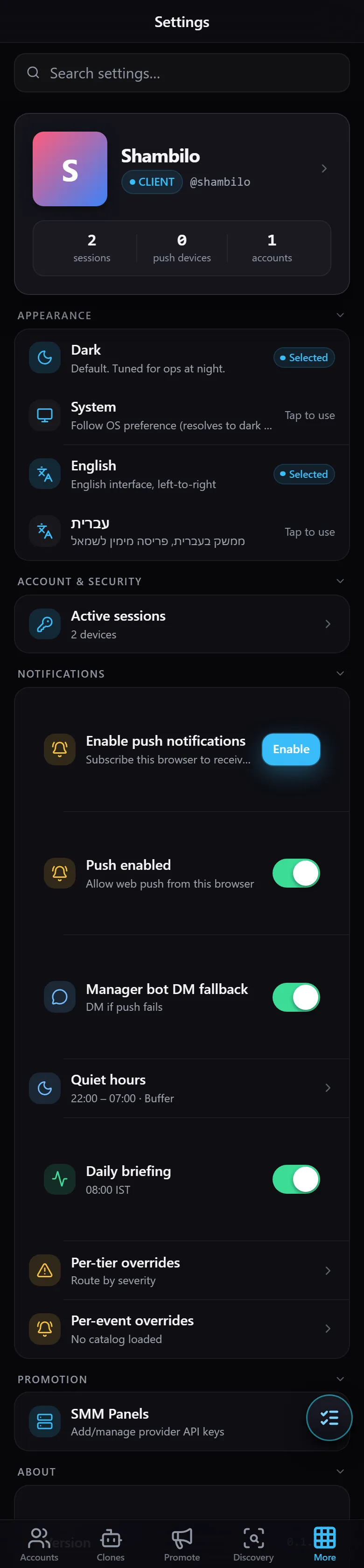
At the top you’ll see your profile (display name, CLIENT badge, and username) alongside a quick summary of your active sessions, push-enabled devices, and linked accounts.
Appearance
- Theme —
Dark(default, optimized for late-night work) orSystem(follows your OS setting). - Language — choose English (left-to-right interface) or עברית (full Hebrew RTL interface). Selecting Hebrew flips the entire app to right-to-left layout. This is how you switch TeleRank to Hebrew.
Account & Security
Tap Active sessions to open the list of devices currently logged in to your account:
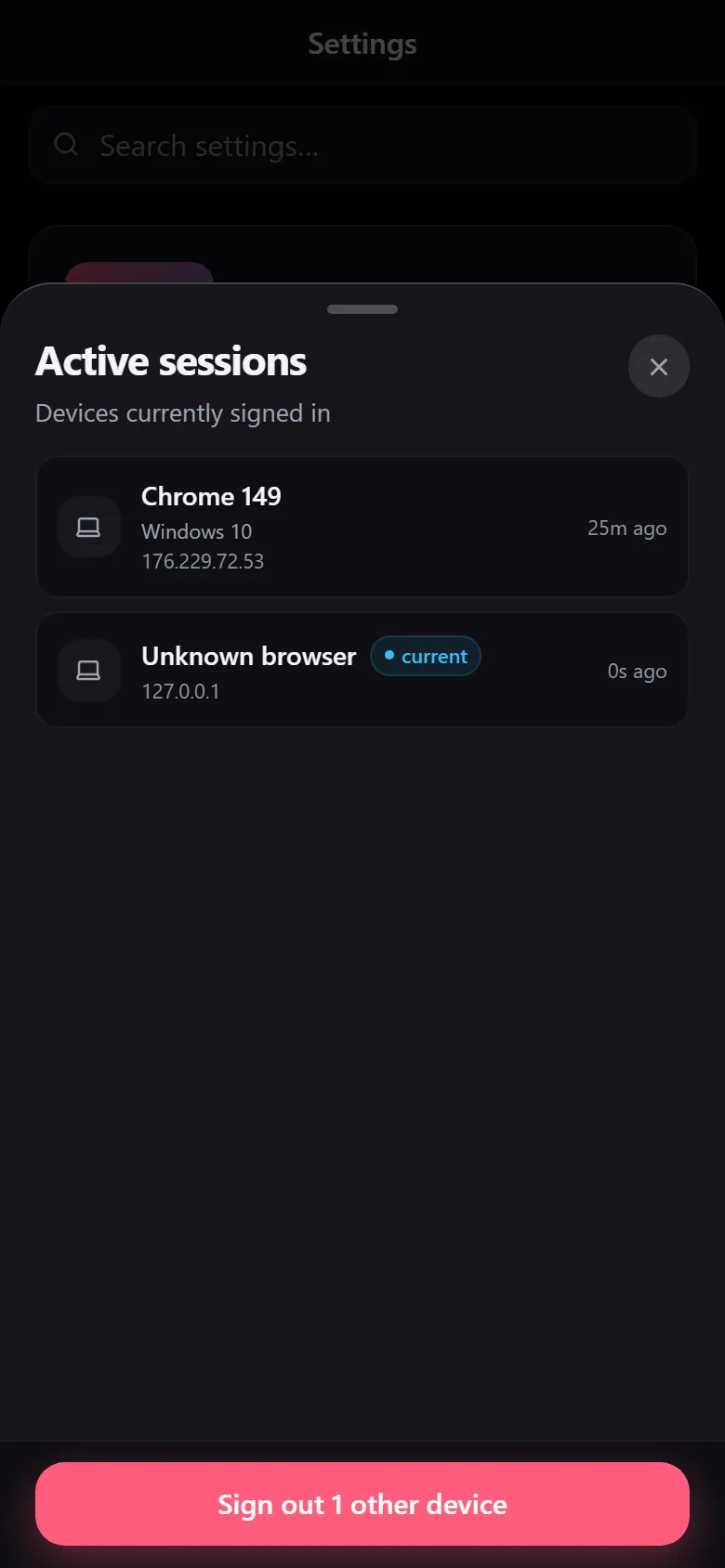
Each entry shows the browser, operating system, IP address, and sign-in time. Your current device is labeled current. You can sign out all other devices in one tap (“Sign out … other device”) — useful if you ever logged in from an unfamiliar device.
Notifications
- Enable push notifications — turns on browser push alerts.
- Push enabled / Manager bot DM fallback — toggles for browser notifications, with automatic fallback to a direct message from your manager bot if push delivery fails.
- Quiet hours — a time window during which no notifications are sent (e.g. 22:00–07:00).
- Daily briefing — a scheduled daily summary delivered at a fixed time.
- Per-tier / Per-event overrides — fine-grained control over which alerts you receive, filtered by severity or event type.
Promotion — SMM Panels
Tap SMM Panels to manage your SMM panel connections:
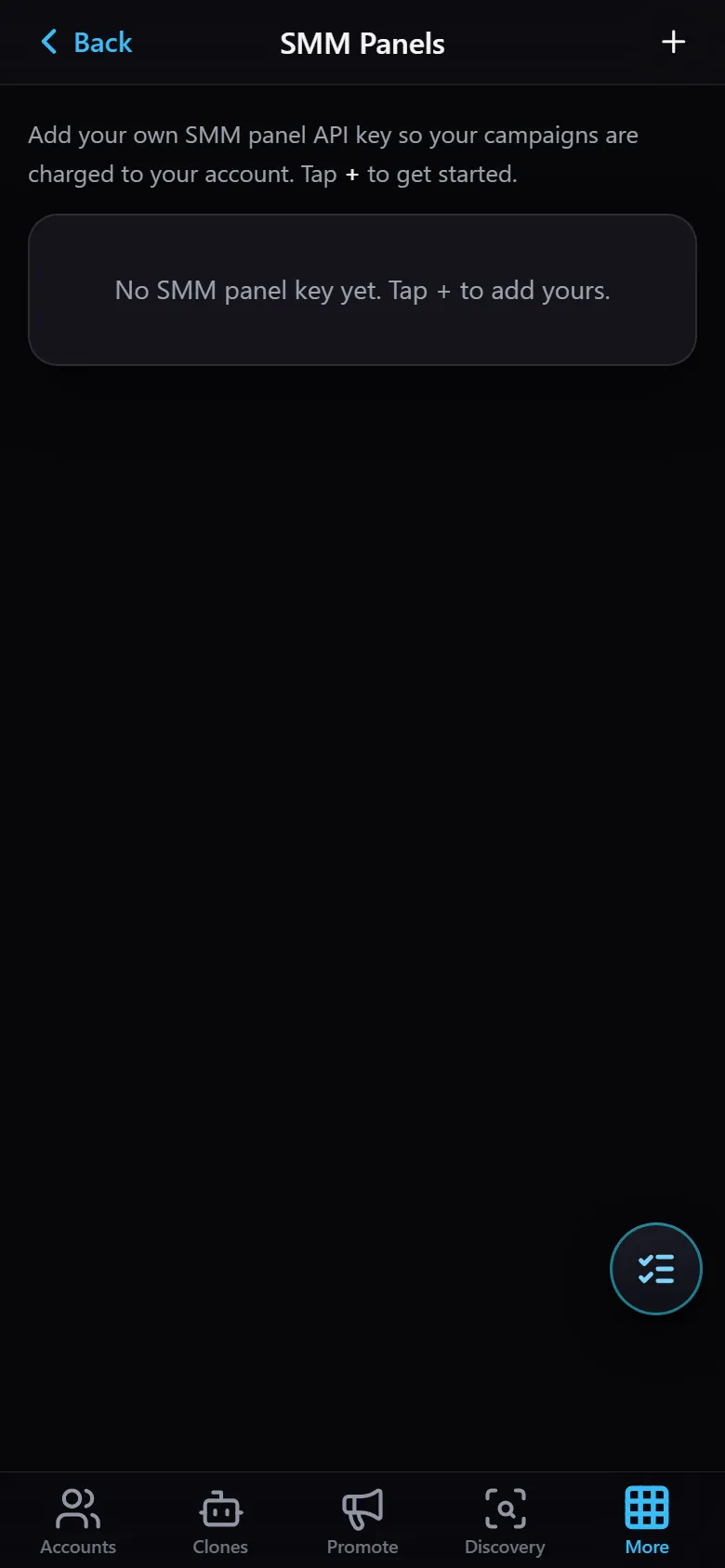
Here you connect your own SMM panel API key so that promotion campaigns are billed to your account. If no panel is connected yet, you’ll see “No SMM panel key yet” — tap + to add one.
Sign Out
At the bottom of the page, Sign out ends your current session.