TeleRank Navigation — Screens & Menus Overview
Before diving into individual pages, here is a map of the interface. TeleRank is built as a mobile app with a fixed bottom navigation bar and a More menu that houses the remaining pages.
Bottom Navigation Bar
Five buttons appear at the bottom of every screen:
- Accounts — manage all your Telegram accounts and run actions on them. See the full Accounts guide.
- Clones — manage the clone bots connected to your fleet. See the Clones guide.
- Promote — the promotion hub: suggested targets, panel balances, and active campaigns.
- Discovery — discover competitor channels and groups in your market.
- More — opens a menu with the remaining pages.
The More Menu
Tapping More opens a menu that gives you access to the rest of the system:
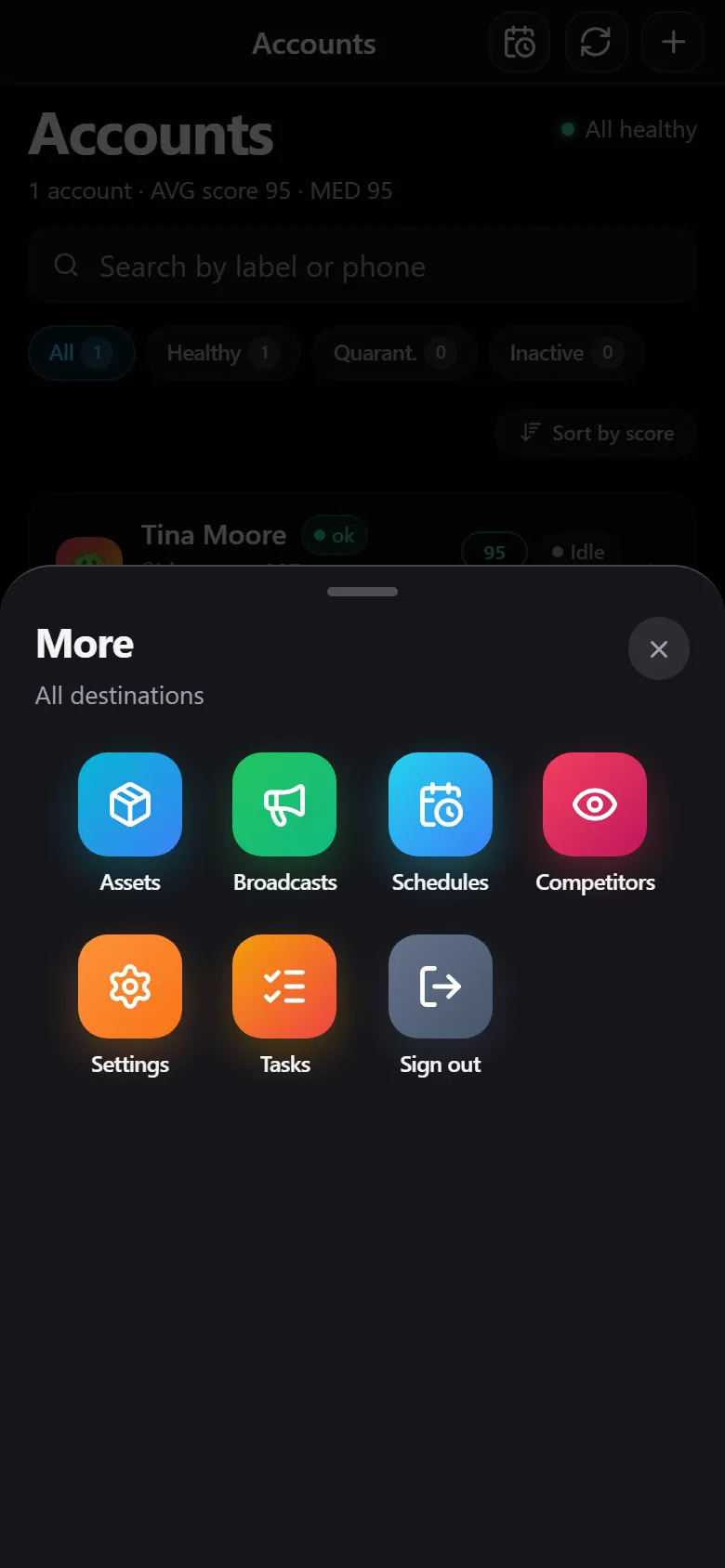
- Assets — the bots and groups owned by your accounts.
- Broadcasts — broadcast message history. See the Broadcasts guide.
- Schedules — schedule recurring actions. See the Schedules guide.
- Competitors — competitor analysis and ranking movements.
- Settings — appearance, language, security, notifications, and panels. See the Settings guide.
- Tasks — track background tasks currently running.
- Sign out.
From here, navigate to any page you need — each guide covers every action on that page with screenshots.