
TeleRank Account Management — Complete Guide
This guide walks you through the Accounts page and the Account Detail page in TeleRank — the two screens where you manage every Telegram account in your fleet, along with its bots, groups, and all available actions. Every action includes a screenshot from the app.
All actions in this guide run from within the account’s own Telegram session. Some are irreversible — pay attention to confirmation prompts before proceeding.
Accounts Page
This is the fleet management home screen. It lists all your accounts along with their health scores and status.
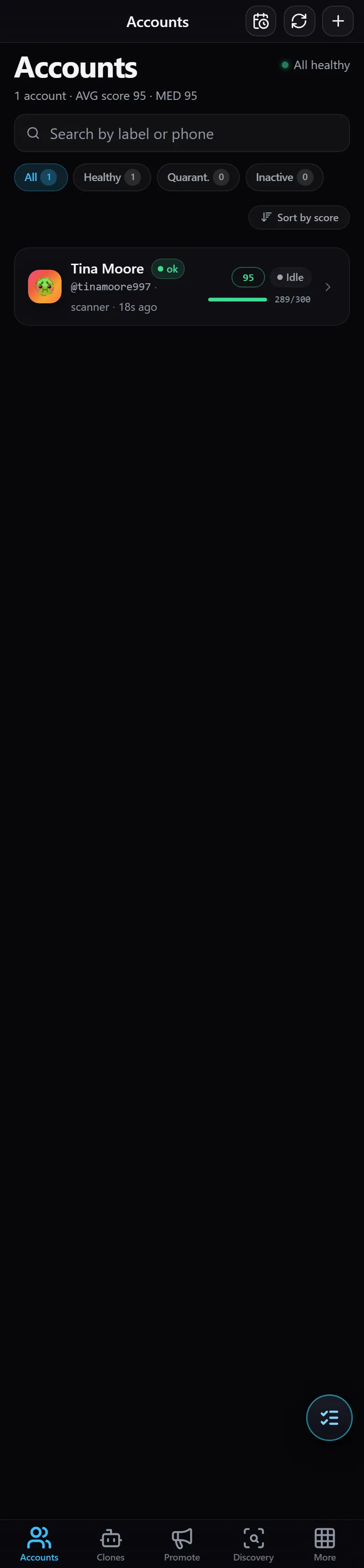
From top to bottom:
- Top summary — total account count, average (AVG) and median (MED) scores, and an overall status indicator (“All healthy”) showing whether the entire fleet is operating normally.
- Search — a “Search by label or phone” field to find an account by name or phone number.
- Status filters —
All/Healthy/Quarant.(quarantined) /Inactive(paused), each showing the account count for that category. - Sort — a “Sort by score” button to order accounts by health score.
- Account card — each account shows its profile picture, display name, username (@), role (e.g.
scanner), last-seen time, score (e.g. 95), and status (Idle / active).
Quick Actions from an Account Card
Tapping an account card opens a quick-action menu without navigating to the full detail page:
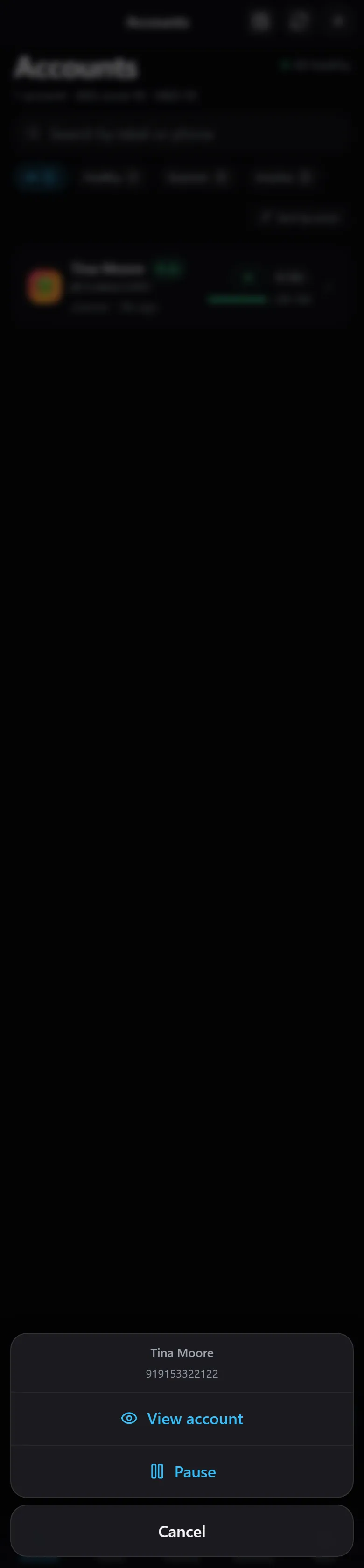
- View account — go to the full Account Detail page.
- Pause — pause the account (it stops receiving tasks until you resume it).
- Cancel — dismiss the menu.
Account Detail Page
Tapping View account opens the Account Detail page — the control center for a single account.
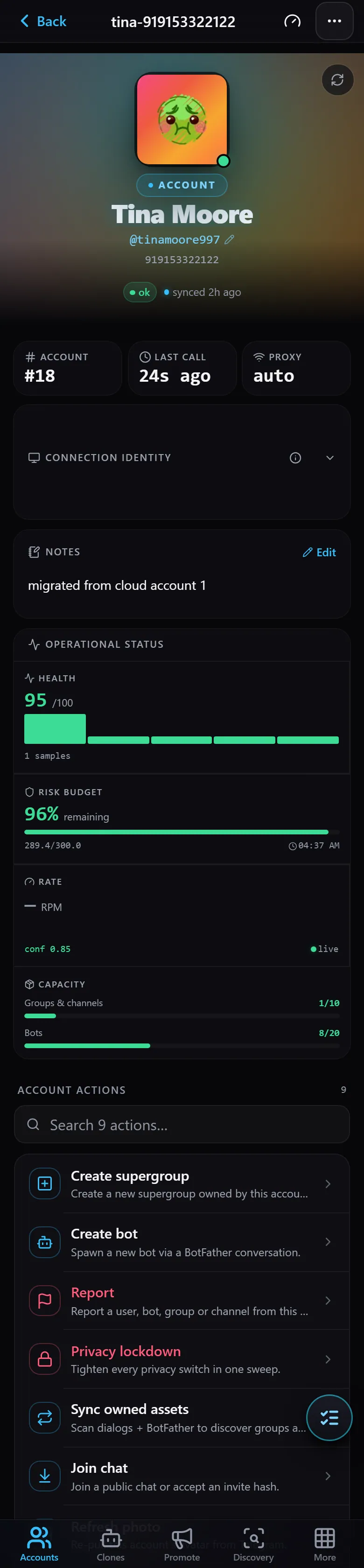
At the top of the page:
- Profile picture, name, and username, phone number, and status (
ok) with the last sync time. - Info cards — account number (#), last call timestamp, and proxy (showing
autoif selected automatically). - Top-right corner: a refresh button, a … menu, and a performance meter.
Scrolling down reveals the account’s operational state:
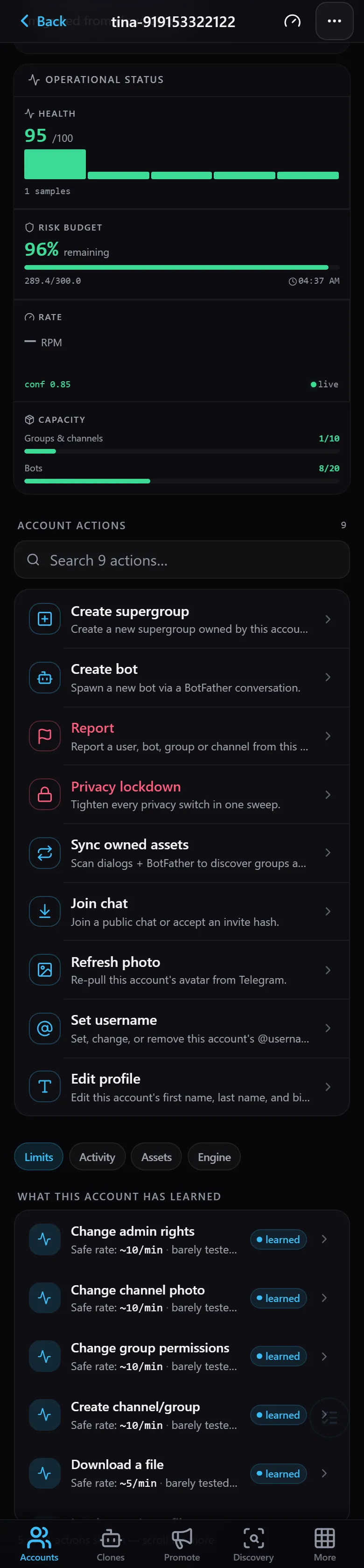
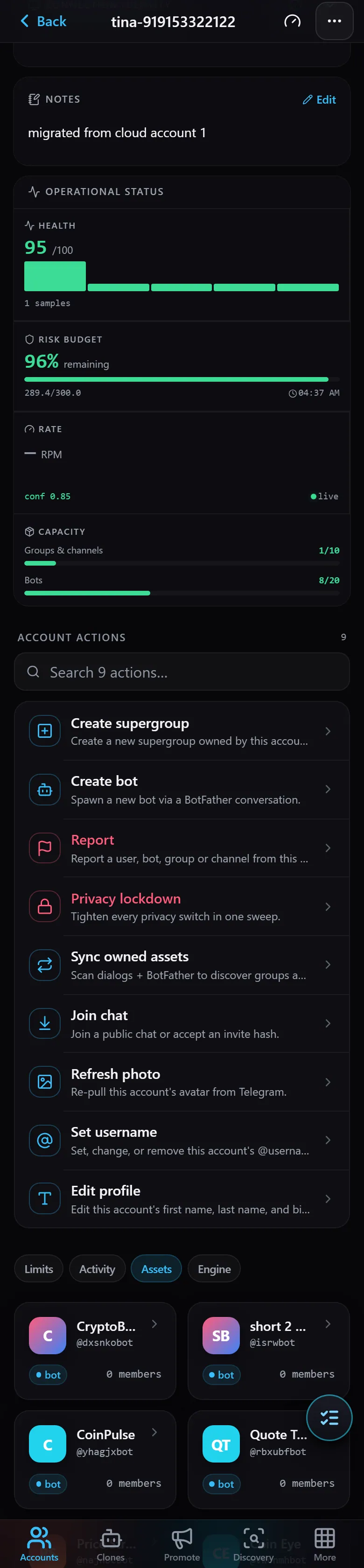
- OPERATIONAL STATUS / HEALTH — health score (e.g. 95/100) with history.
- Risk budget — remaining risk budget (e.g. 96%, 289.6/300). This is the safety mechanism that prevents an account from running too many actions and getting banned.
- RATE — actions per minute (RPM) and confidence level (conf).
- CAPACITY — how many groups and channels and how many bots the account currently holds versus its ceiling (e.g. 8/20 bots).
- CONNECTION IDENTITY — the account’s simulated device identity, with an Edit button.
- NOTES — free-text notes, with an Edit button.
Account Actions
The central section of the page is the ACCOUNT ACTIONS list — nine actions you can run on the account. A search field lets you filter by action name, and each action shows a title and short description.
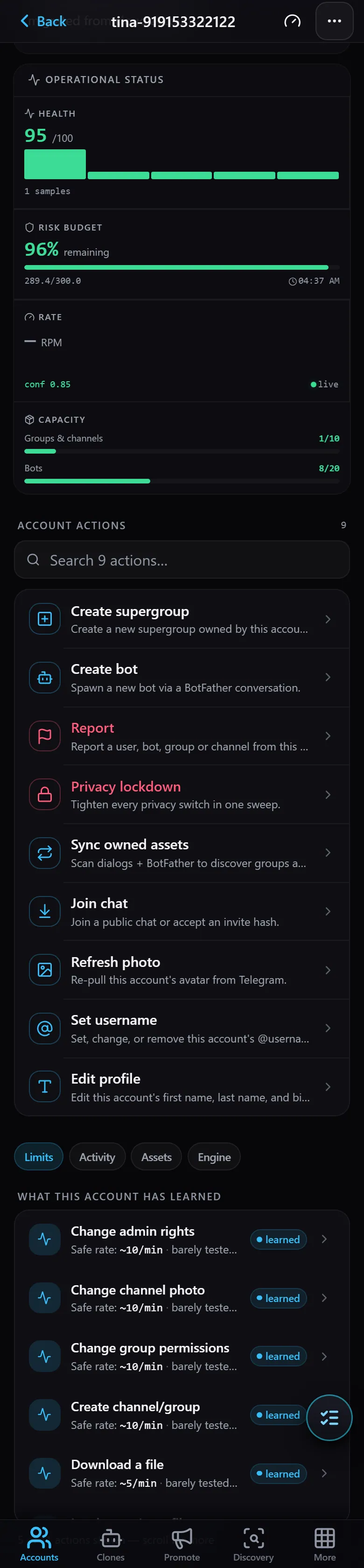
Here is what each action does.
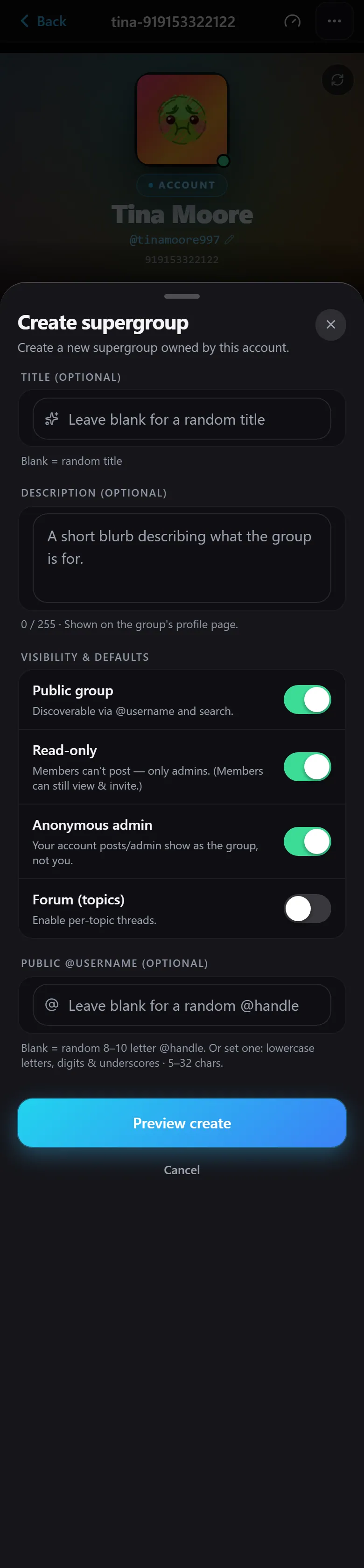
Create supergroup
Creates a new Telegram supergroup owned by this account. Useful for building new group assets to promote.
Create bot
Creates a new bot through an automated conversation with BotFather. The username is generated automatically, along with the profile picture, description, and about text — the token is stored encrypted in TeleRank (no need to copy it manually).
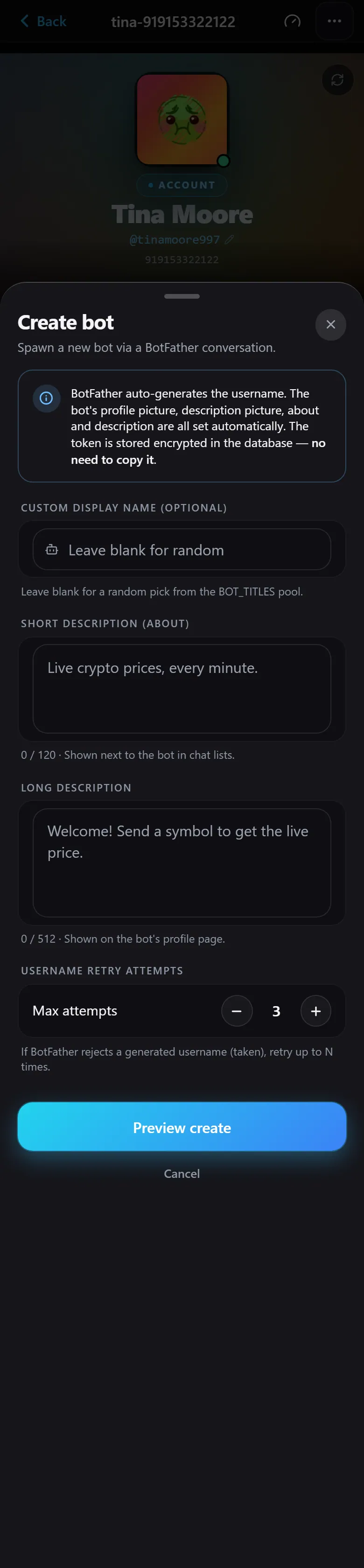
Fill in a display name (or leave it blank for a random one), a short description, and a long description, then confirm. TeleRank handles the entire BotFather conversation for you.
Report
Submits a Telegram report on a user, bot, group, or channel — from this account’s session. Reports are permanent.
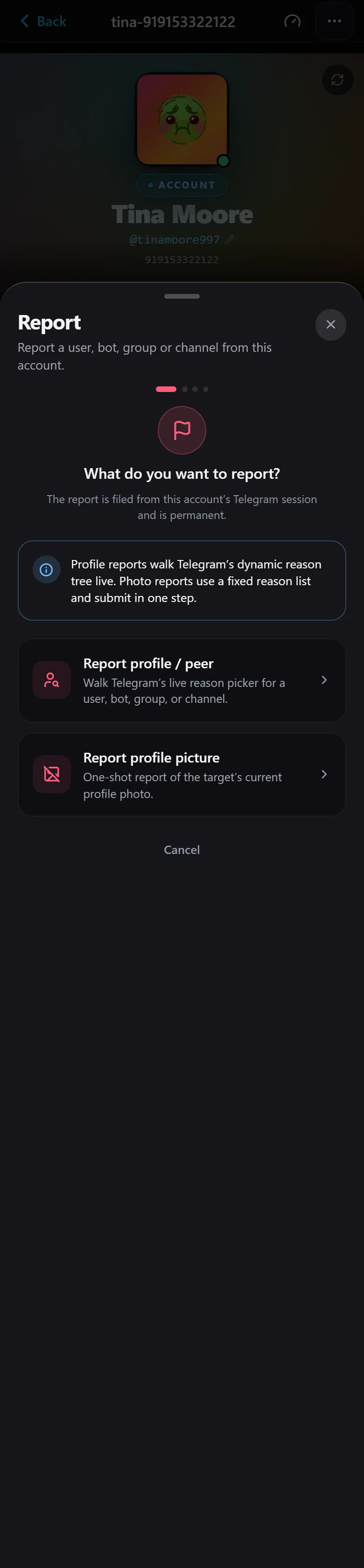
The wizard walks you through step by step: choose what to report (profile/entity or profile photo), then select a reason from Telegram’s live reason tree.
Privacy lockdown
Hardens all of the account’s privacy settings to the strictest values in a single action — phone number, last seen, profile photo, forwards, calls, voice messages, P2P, and group invitations.
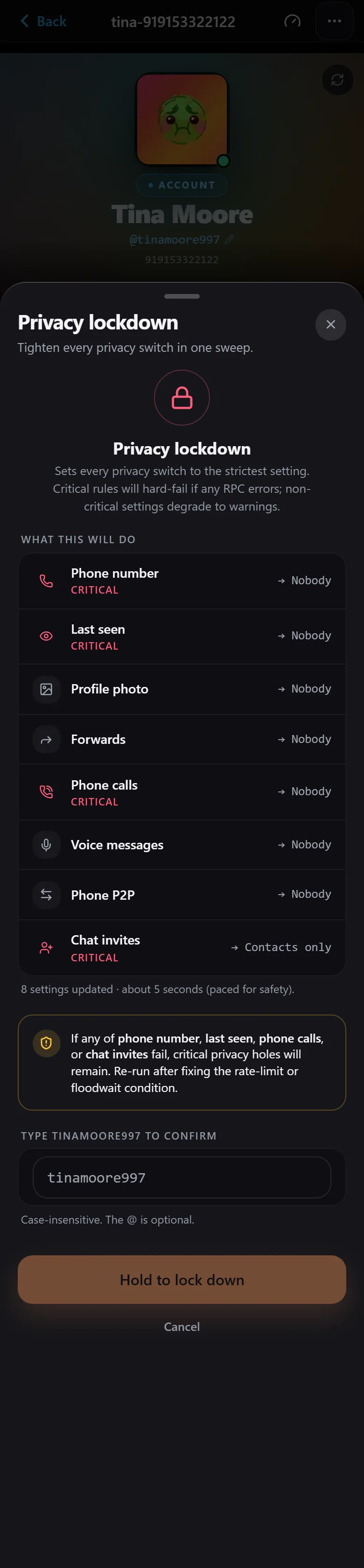
This is a sensitive action: you must type the username to confirm, then press and hold (“Hold to lock down”). The action runs at a controlled pace (about 5 seconds) to avoid triggering a ban.
Sync owned assets
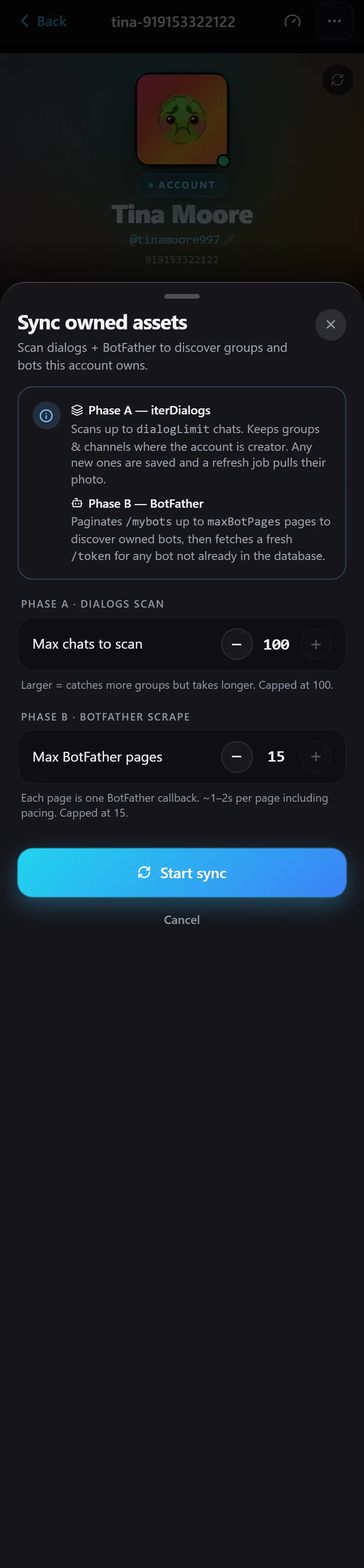
Scans the account’s chat list and BotFather to discover which bots and groups belong to this account, then updates the assets list (visible in the Assets tab).
Join chat
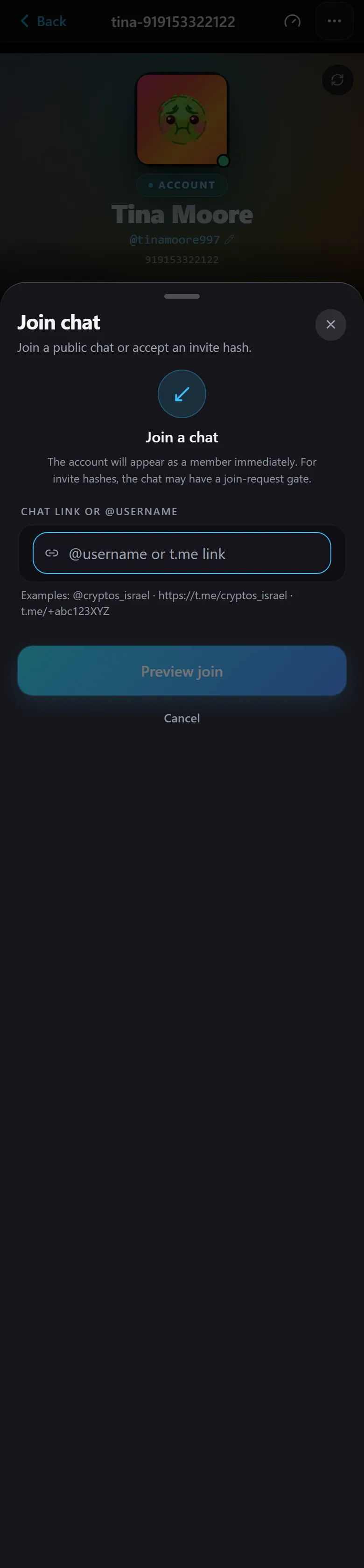
Adds the account to a public chat or via an invite link (invite hash).
Refresh photo
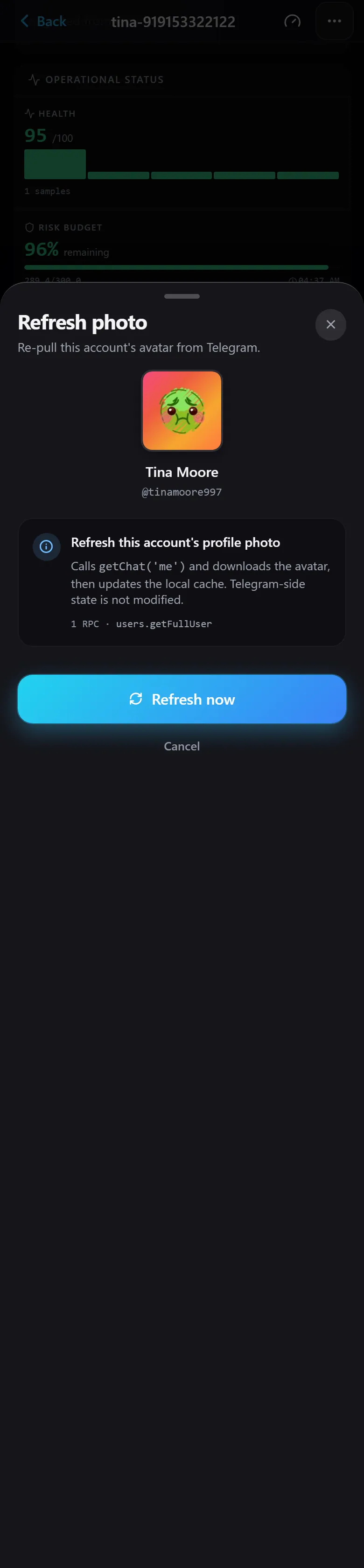
Re-fetches the account’s profile picture from Telegram — useful if the picture was updated in Telegram but has not synced in TeleRank.
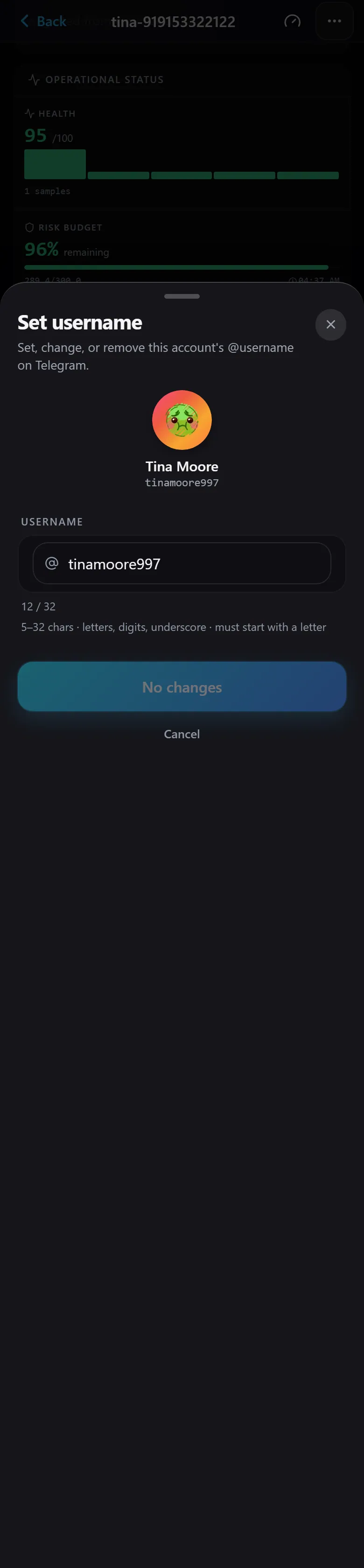
Set username
Sets, changes, or removes the account’s username (@).
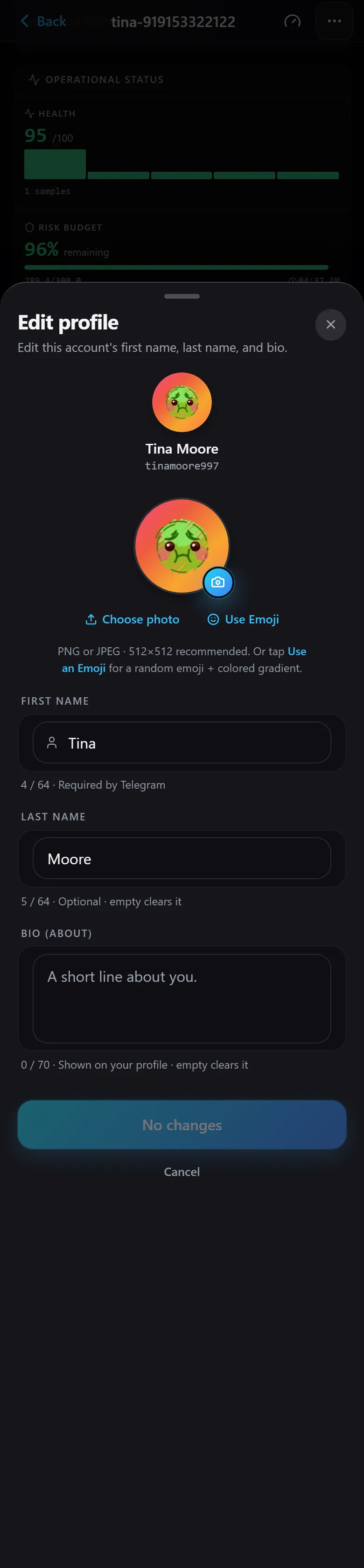
Edit profile
Edits the account’s first name, last name, and bio.
Account Detail Tabs
At the bottom of the page are four tabs that consolidate account information: Limits · Activity · Assets · Engine.
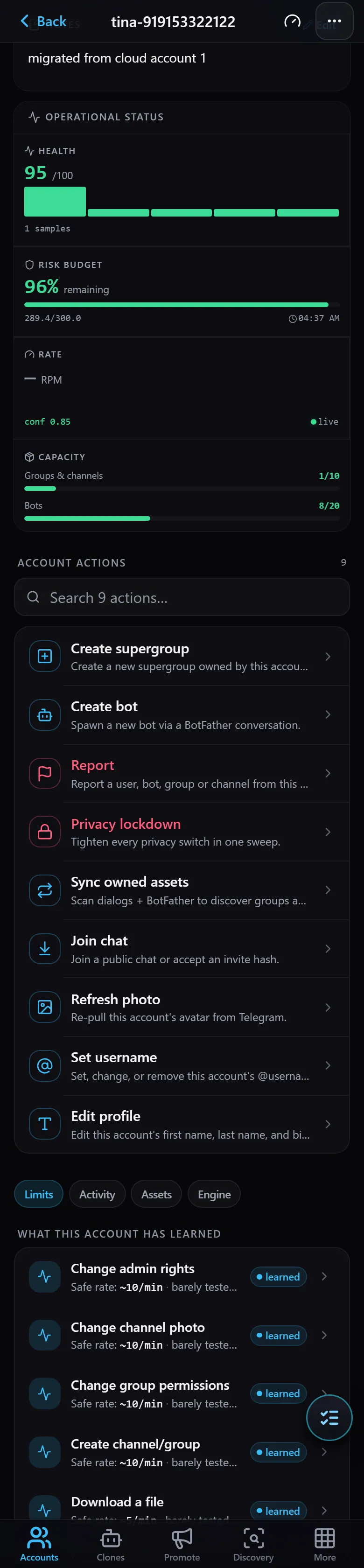
Limits — learned rate limits
Shows the limits the system has learned for each action type — the safe rate at which that action can run without putting the account at risk (e.g. changing admin permissions, swapping a channel photo, running a Telegram search, and more).
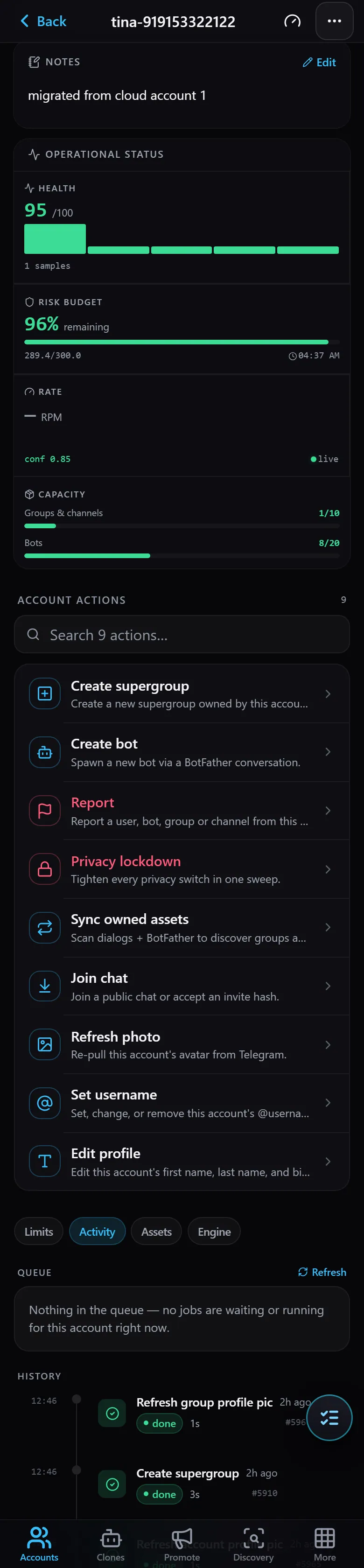
Activity — queue and history
Shows the queue (tasks waiting or currently running on this account) and the history (completed actions with timestamps and status).
Assets — bots and groups
The heart of asset management: all the bots and groups owned by this account, displayed as cards with username and member count. This is where you manage the assets you are promoting. (If the list looks outdated, run Sync owned assets.)
Engine — automation decisions
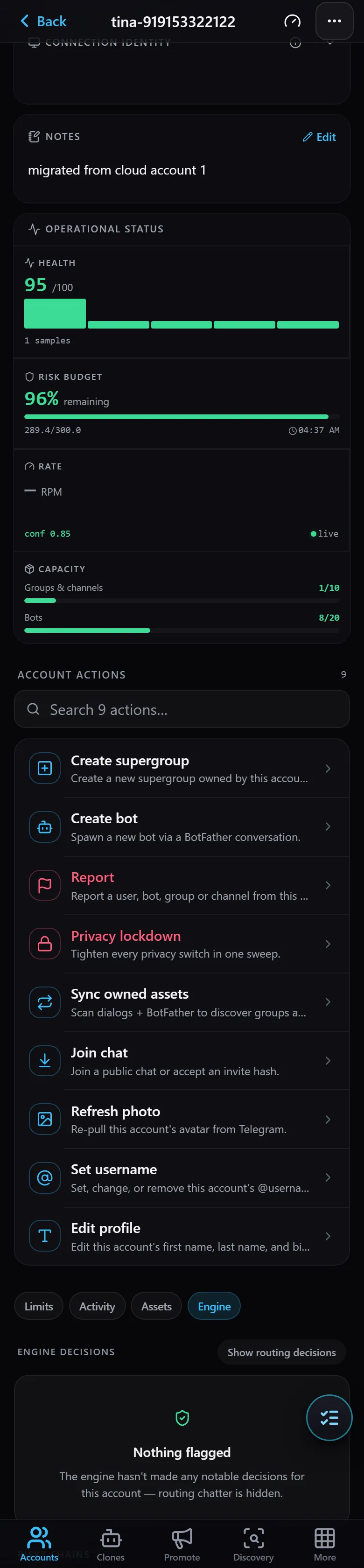
Shows TeleRank’s automation engine decisions for this account — risk flags and routing decisions. When “Nothing flagged” is displayed, the engine has not detected any issues and the account is operating normally.
Summary
The Account Detail page is the full control center for every Telegram account in TeleRank: from here you create bots and groups, manage privacy and identity, monitor health and risk budget, and see all assets and activity in one place.
Continue from here: